Use the Contacts page
Clear the people waiting on you, filter the list, change many contacts at once, and bring in or download your contacts as a CSV file.
On this page
The Contacts page is where you check who has been in touch and who is still waiting on you. Willo fills it in on its own from your forms, signups and sales; Contacts explains where each person comes from. Only the business's owner and admins can open it.
Open Business → Contacts. It works the same on a phone, and the bell at the top turns on a notification on your phone for each new lead and reply. People is the list this page describes; Jobs is the pipeline of quotes and work, described in Track jobs and send quotes.
Clear the people waiting on you
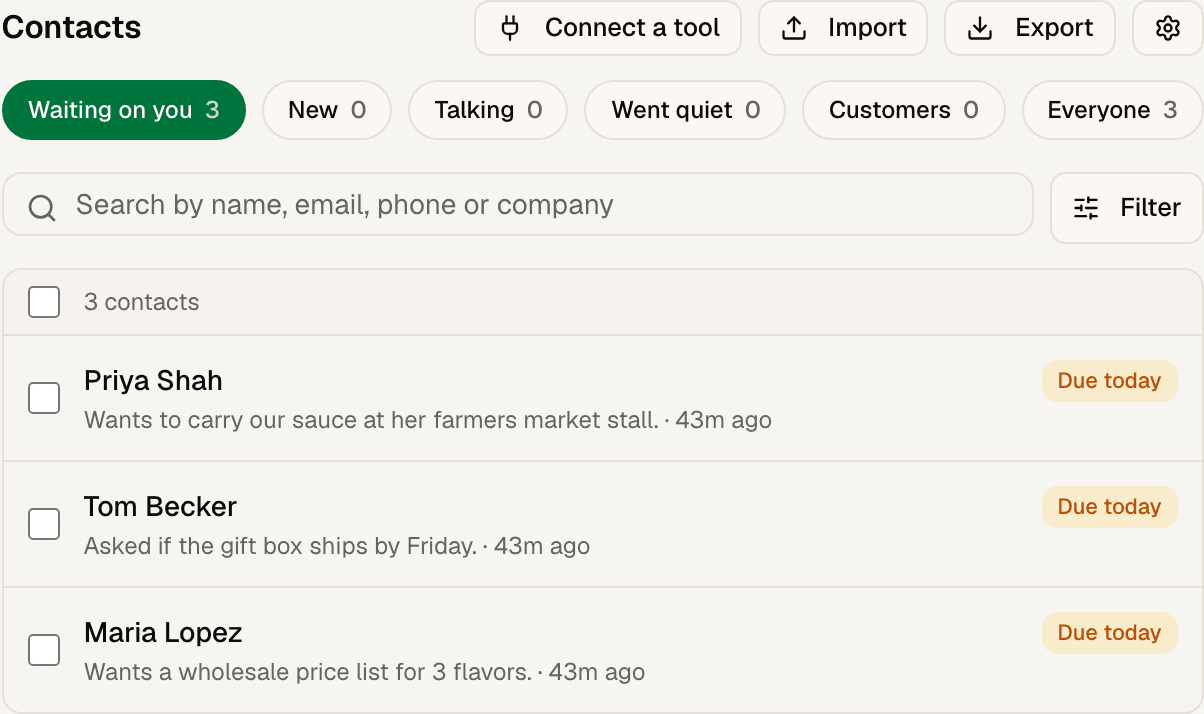
The page opens on Waiting on you: everyone whose follow-up date has arrived, oldest first. A new message through your contact form or waitlist lands here straight away. The Overview tab shows a Waiting on you card with the count, and it links here.
For each person:
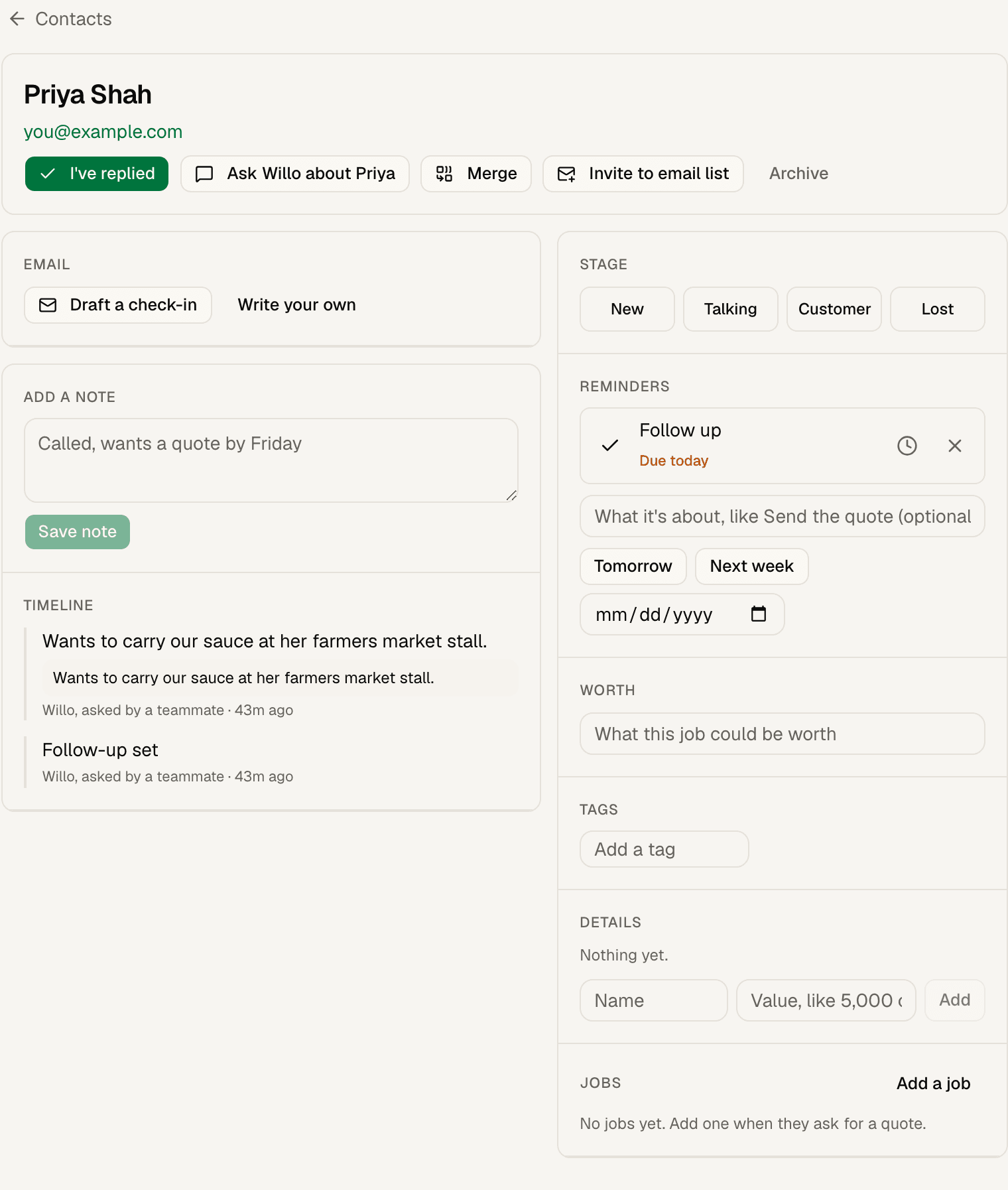
- Tap their row. Their page opens: what they sent and everything since, with their details beside it (below it on a phone). ← Contacts at the top goes back to the list as you left it, with the same filters, search and place in the list.
- Answer them: tap Draft a check-in for an email Willo writes, edit it, and tap Send. Or tap their email address or phone number, or Ask Willo about them to work on a reply in chat.
- A reply sent from their page takes them off the list by itself, unless another of their reminders is due. If you answered another way, tap I've replied. Either way a new lead moves to Talking, and their lead in your Willo inbox is marked handled, so it stops offering Willo's drafted reply.
To come back to someone later, tap the clock on their reminder under Reminders and choose Tomorrow or Next week instead. They come back on that day.
Keep track of where each person stands
The chips along the top filter the list: New, Talking, Went quiet, Customers and Everyone. Went quiet is everyone you're talking with who has had no activity for a week; open one and tap Draft a check-in. Search finds anyone by name, email, phone or company.
Filter narrows the list further: by stage (including Lost, or no stage for people who are only on your list), by tag, by where they came from, and whether to show archived contacts. The list shows how many people match, and Show more keeps loading until you reach the end.
A follow-up email from a contact's page goes from your own domain if you've verified one, otherwise from your business's Willo address. It lands on their timeline, and so does their reply, which also reaches your own inbox and puts them back in Waiting on you (how replies work). Write your own gives you a blank email instead of a draft.
On a contact's page you can:
- Change their stage: New, Talking, Customer or Lost. Someone who pays through a Stripe checkout becomes a Customer on their own.
- Add reminders under Reminders: a line on what it's about, then Tomorrow, Next week or a date. A contact can have up to 20 open reminders; they show up in Waiting on you when the soonest one is due. Tick one off with the check mark. I've replied ticks off the follow-up a new message came with and leaves your other reminders in place.
- Note what a job is worth, so you can see your biggest open quotes.
- Add tags such as "roofing" or "referral".
- Add details such as a budget, a job type or how they heard of you, under Details. Willo fills some in from your forms. A contact can hold up to 50 details. Tap the pin beside a detail to show it on every row of the list; up to three can be pinned, and the choice applies to everyone on the business. Pinned details are listed above the list, where × takes one off.
- Add a note after a call or a visit. It goes on their timeline.
- Merge another contact into this one with Merge at the top: find them by name, email or phone. See Merge duplicate contacts.
- Archive someone you no longer need to see. Archived contacts are left out of the list and the export. To bring someone back, choose Only archived under Filter, tick them and tap Bring back. They also return on their own if they write in or buy again.
The timeline says who did each thing: what Willo added from your contact form or a sale, and what you or a teammate changed. Purchases lists what they bought, read by their email address from your Shopify store and your last 100 Stripe payments.
Change many contacts at once
Tick the box on each row you want, or the box at the top of the list for everyone shown. When more people match than are shown, tap Pick all … matching. Then:
- Stage moves them all to one stage.
- Tags adds or removes a tag.
- Archive (or Bring back) hides them from the list. A toast offers Undo.
- Export downloads just those people as a CSV file.
- Invite to email list emails them an invitation to join your list (below).
A change works on up to 500 contacts at a time; narrow the list with Filter for more. Each person who changed gets an entry on their timeline that says you made it. A contact that already has 50 tags keeps them and isn't given another. Changing contacts in bulk (stage, tags, archive) never sends anyone an email, and doesn't start your automations: an automation that runs when someone becomes a Customer runs for a change made on their page, not for a bulk change.
When two contacts look like the same person, a possible duplicates line appears above the list; see Merge duplicate contacts.
On your email list means your campaigns reach them. People who write in through your forms and people who buy from you join it automatically; turn that off under Email list in Contacts settings. Anyone who unsubscribes, bounces or marks your email as spam stays off for good unless they sign up again and confirm.
Invite contacts to your email list
Pick contacts and tap Invite to email list, or tap it on one contact's page. Willo shows how many people will get the invitation and why the rest won't, with a subject and message you can edit. Tap Approve and send to send it.
- Each person gets your message with a Yes, add me to the list button. They join your list only if they click it within 7 days. Nothing changes if they don't.
- Willo skips anyone already on your list, anyone who unsubscribed, bounced or marked your email as spam, anyone with no email address, archived contacts, addresses that look automated, and anyone invited in the last 30 days or twice already.
- Your message can use
{first_name}and{business_name}. Links aren't allowed. Willo adds the button and a line saying nothing changes unless they confirm. - A business can send up to 100 invitations a day, and an account up to 200 across its businesses.
- Each invitation goes on the person's timeline, and so does their answer when they join. When your business keeps its list in its own database, On your email list then shows on their page.
Settings
The gear at the top of the page opens Contacts settings:
- Send replies only to me: replies to the email you send from Willo reach only your inbox, and aren't logged on timelines.
- Instant reply to new leads: write the message every new lead gets within a minute, then Approve and turn on. Editing it later means approving it again; Turn off stops it at once. See Instant reply.
- Email list: two switches.
- Add new leads and buyers to my email list (on to start): people who write in through your forms or a connected tool's leads, and buyers through Stripe (or Shopify buyers who agreed to marketing email there), join your list. Turn it off if your rules or your customers' location call for asking first.
- Ask new signups to confirm by email: everyone who signs up for your newsletter on your website joins only after they click a link in their inbox. See Confirming sign-ups by email.
- Log email you send from your own mail: the BCC address that puts an email you write in Gmail, Outlook or another mail app on the person's timeline.
Import a list
Bring in contacts you keep somewhere else, such as a spreadsheet or another tool's export.
- Save the list as a CSV file with a header row. It needs a column of email addresses or phone numbers. Name, company, stage, tags, notes, worth and follow-up date columns are picked up too.
- Tap Import and choose the file. Willo shows which columns it matched and how many people are new, already here, or repeated in the file. Change a column with its menu if it guessed wrong.
- Answer Did these people agree to get marketing email from you? Yes adds everyone in the file with an email to your email list. No adds them as contacts only, and you can invite them later.
- Tap Import to add them.
People already here are matched by email address, then by phone number. An import fills in details that are blank and never overwrites what you already have: a file's tags go on people who have no tags yet, and its follow-up date on people who have none. To tag people who are already here, pick them and use Tags. Importing the same file twice changes nothing. A follow-up date with no time means 9 in the morning in your business's time zone. Contacts from a file without a stage column have no stage: find them under Everyone.
A file can hold up to 2,000 contacts and be up to 1 MB. Split a bigger list into several files.
Answering yes never adds anyone who unsubscribed, bounced or marked your email as spam. Only say yes for people who agreed; email laws outside the US are stricter about this.
Download your contacts
Tap Export at the top for a CSV file of everyone who isn't archived, up to 20,000 contacts, with their stage, worth, tags and follow-up date. It opens in any spreadsheet. Importing it back restores names, contact details, company, stage, worth, tags and follow-up dates, into details that are blank.